Data transmission specs:
Bits per second: 9600
Data Bits: 8
Parity : None
Stop bits : 1
Flow Control: None
These settings will be used when setting up the HyperTerminal session.
Connection
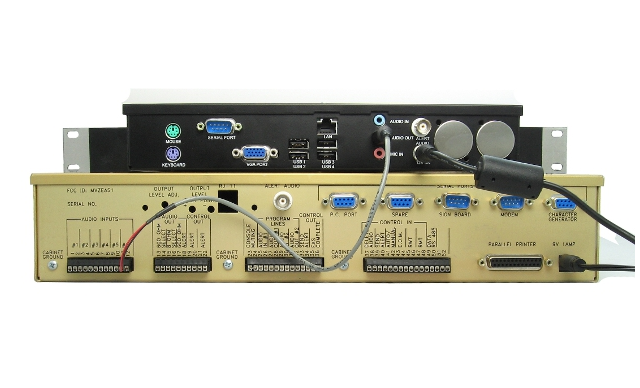
Using a straight-through DB9 male to DB9 female cable, connect PC port on EAS to COM port on PC.
Run Hyperterminal from the Windows Start menu->Accessories->Communications->HyperTerminal and follow
the steps outlined below.
Logging
To log data, use the following steps:
1. Go to the Transfer Menu and select Capture Text.
2. When the Capture Text window pops up, enter the path and name of the
file that you wish to use for capturing the text. The filename can be
anything, but it might be convenient to include the date of the day
that it was started. For instance, you might enter: C:\GORMAN\LOG20090801.txt
This would open a file in the GORMAN folder called LOG20090801.txt. This file
name indicates that it was created on August 1, 2009.
3. After entering the path and filename, click the Start button to
begin logging data. At that point any information that shows on the
Hyperterminal screen will be logged to that file. One of the boxes on
the bottom of the Hyperterminal window will now show the word "Capture" in dark print.
4. At the end of the period during which you want to collect the log
data (probably a day, week or month depending upon the amount of data),
click on the Transfer Menu, and select Capture Text and Stop. At this time the
file will be closed. The word "Capture" at the bottom of the Hyperterminal
window will change from dark print to the gray disabled look.
5. The file may now be opened using any text editor such as Notepad,
Wordpad, etc. When the file is opened it may be examined, searched,
printed, etc.
6. Follow the same procedure with a new filename to being logging again.
|